Category: Uncategorized

  • AdGuard Home (AGH) Port Conflict Resolution

    AdGuard Home (AGH) Port Conflict Resolution

    AdGuard Home requires ports 53 (DNS) and 80 (Web Interface), but OpenWrt’s core services (Dnsmasq and LuCI) already use them. Use the following steps via SSH to fix the conflicts.


    1. Resolve Port 53 Conflict (DNS)

    We move OpenWrt’s Dnsmasq server from port 53 to port 5353, allowing AGH to take the standard port 53.

    1. Stop AGH: /etc/init.d/adguardhome stop
    2. Move Dnsmasq to Port 5353 (Execute these three lines): uci set dnsmasq.@dnsmasq[0].port=’5353′ uci commit dnsmasq /etc/init.d/dnsmasq reload
    3. Configure AGH DNS Port: During the AGH welcome screen setup, set its DNS server port to 53.

    2. Resolve Port 80 Conflict (Web Interface)

    Since port 80 is used by LuCI and your reverse proxy, we change the AGH dashboard port.

    1. Configure AGH Web Port: During the AGH welcome screen setup, change the Web interface port from 80 to an available port like 8080 or 81.
      • Access: You will access the AGH dashboard via http://[OpenWrt_IP]:8080 (or the port you chose).

    3. Finalize Traffic Redirection

    Once AGH is set up and listening on port 53, you must redirect all DNS traffic hitting the router (which goes to Dnsmasq on port 5353) back to AGH on port 53.

    1. Add a Forward Rule and Restart Dnsmasq (Execute these three lines): uci set dnsmasq.@dnsmasq[0].server=’127.0.0.1#53′ uci commit dnsmasq /etc/init.d/dnsmasq restart

    4. Verification

    • Check the AGH dashboard at your chosen port (e.g., http://[OpenWrt_IP]:8080).
    • Ensure devices are successfully being filtered.
  • Guide: Installing Realtek RTL8125 Driver on Debian/Proxmox

    This guide resolves issues encountered when installing the TP-Link TX21/Realtek RTL8125 driver on a Debian-based system (like Proxmox) that already has an older Realtek NIC using the built-in r8169 driver.

    Prerequisites

    • Console Access: Since network connectivity will be interrupted, you must have physical access (keyboard/monitor) or IPMI/iDRAC/vPro access.
    • Latest Driver: Ensure you download the latest Linux driver tarball for the RTL8125 chip directly from the Realtek website to avoid compilation errors with newer kernels.
    • Kernel Headers & DKMS: Install the necessary packages for compiling the driver:Bash
    apt update
    apt install build-essential dkms pve-headers

    1. Resolve Driver Installation Failure (The Hang)

    The installer (autorun.sh) will hang because the kernel’s default r8169 driver is actively in use by another NIC.

    A. Identify and Disable the Conflicting Interface

    1. Find the Physical Interface and Bridge: Use ip a to identify the active interface using the r8169 driver (e.g., enp6s0) and the corresponding Proxmox bridge (e.g., vmbr1).
    2. Bring Down the Network: This will stop the driver’s process, allowing the installer to unload it.
    ifdown vmbr1               # Bring down the bridge (crucial for Proxmox)
    ip link set enp6s0 down    # Bring down the physical interface
    • Manually Unload the Old Driver:
    rmmod r8169

    B. Run the Installation

    1. Navigate to the new driver directory (e.g., cd r8125-9.011.00).
    2. Execute the installer:
    ./autorun.sh

    If successful, the script will compile the new r8125 module using DKMS and install it.

    Reboot:

    reboot

    2. Resolve NIC Conflict (Missing Interfaces)

    After installation, the new r8125 driver often aggressively claims both the new NIC and the older onboard NIC, leaving the older one unusable.

    The solution is to bind the custom r8125 driver only to the new card, leaving the old card for the kernel’s r8169 driver.

    A. Identify the New Card’s PCI Address

    1. List PCI devices and find the new Realtek card: Look for the device actively using the r8125 driver and note its PCI address (e.g., 04:00.0).
    lspci -nnk | grep -i realtek -A3

    B. Create a Driver Binding Rule

    1. Create the configuration file: This uses the install directive to tell the system to load r8125 but only bind it to the specified PCI address.
    # REPLACE [NEW_CARD_PCI_ADDRESS] with your actual address (e.g., 04:00.0)
    echo 'install r8125 /sbin/modprobe --ignore-install r8125; /usr/bin/echo "[NEW_CARD_PCI_ADDRESS]" > /sys/bus/pci/drivers/r8125/bind' > /etc/modprobe.d/r8125-bind.conf
    • Update Initramfs: This applies the new binding rule before the kernel loads drivers.
    update-initramfs -u -k all

    and reboot now.

    3. Final Verification

    After the final reboot, both network interfaces should be present and active:

    • Check all interfaces:Bash
    ip a
    • Verify drivers:
      • The new TX21 card should show driver: r8125.
      • The old onboard NIC (e.g., enp6s0) should show driver: r8169.
  • OpenWrt MT7610U AP Install and config AP

    1. ⚙️ Hardware & Driver Installation

    The core task was installing the correct drivers and firmware for your MediaTek MT7610U chipset (Vendor ID 0b05:17d1).

    • Driver: Installed the kernel module responsible for the MT76x0 series USB chips:
      • opkg install kmod-mt76x0u
    • Firmware: Installed the required binary data for the chip to function (named for a similar chip in the family):
      • opkg install mt7601u-firmware
    • AP Management: Installed the daemon necessary to run a Wi-Fi Access Point and handle modern encryption:
      • opkg install hostapd-wolfssl (Chosen for full WPA3 support with a lightweight security library.)

    2. 🔒 Wireless Security (Encryption)

    You selected the strongest security suitable for a simple, password-based AP.

    • Protocol Choice: WPA3-SAE (Simultaneous Authentication of Equals).
    • Reasoning:
      • Simplicity: Uses a passphrase, eliminating the need for a complex RADIUS server (which would be required by WPA3-EAP/Enterprise).
      • Security: Provides modern protection against offline dictionary attacks, which WPA2-PSK is vulnerable to.

    3. 📶 Wireless Mode & Compatibility

    You successfully configured the AP to run on the 2.4 GHz band while maintaining compatibility for legacy devices.

    • Band: 2.4 GHz (Chosen for better range and penetration for remote management).
    • Mode: N (802.11n).
    • Compatibility: Selecting N mode allows all modern 802.11n devices to connect, while simultaneously enabling 802.11g mode, ensuring your older 2.4 GHz-only client can connect successfully.
    • Channel Width: (Implicitly or explicitly set to) 20 MHz (HT20) for maximum stability and compatibility in the congested 2.4 GHz band.
  • Ansible and System Updates

    apt update
    apt install ansible
    apt install software-properties-common

    Setup passwordless authentication with the servers you want to manage

    This is useful if you want to automate processes via ssh without intervening by having to input the password to the remote server.

    sshcopy-id user@ip_address

    Setup passwordless sudo commands

    In the server you want to manage with ansible, you’ll have to allow the sudo user to execute commands without a password. Since in this example we want to automate the updates-upgrades of the system, each time ansible sends the order to do an apt update (or other command with superuser privileges) the sudo password will be asked demanding a human interaction and ansible will not be able to successfully send the order to the remote server. There are 2 ways to do this. One is by typing visudo in debian to ope the configuration file /etc/sudoers and the other ways is by creating a new file inside /etc/sudoers.d/[name of your sudo user]. Once inside that file we need to add the following line:

    # Allow admin user to run specific scripts and commands with superuser privileges
    # without needing a password.
    admin ALL=(ALL) NOPASSWD: ALL

    If you want to be less permissive and only allow certain commands to be executed without a password these are the ones used in the playbooks in this example:

    # Allow admin user to run specific scripts and commands with superuser privileges
    # without needing a password.
    Cmnd_Alias UPDATE_PKGS = /usr/bin/apt update, \
                              /usr/bin/apt upgrade, \
                              /usr/bin/apt dist-upgrade, \
                              /usr/bin/apt autoremove, \
                              /usr/bin/apt autoclean, \
    admin ALL=(ALL) NOPASSWD: UPDATE_PKGS                          

    Define where your ansible files are going to be placed

    Given that this example will be tested in proxmox, I will locate them in /etc/ansible if is not created by defect. Furthermore, having the ansible configuration directtory in the main sever will ensure comms with all vms running inside unless the server is shut down.

    Create an inventory file that includes your Proxmox VMs (or other servers you want to manage). For example, /etc/ansible/hosts:

    Make sure your vms have a static ip!

    [proxmox_vms]
    vm1 ansible_host=192.168.1.101 ansible_ssh_user=admin
    vm2 ansible_host=192.168.1.102 ansible_ssh_user=admin

    Test your connectivity with the hosts:

    ansible all -m ping

    1. Daily Tasks Playbook: daily_tasks.yml

    ---
    - name: Daily Maintenance Tasks
      hosts: webservers
      become: yes
      tasks:
        - name: Update the apt package cache
          apt:
            update_cache: yes
    
        - name: Clean up unused packages
          apt:
            autoremove: yes
    
        - name: Clear out outdated package files
          apt:
            autoclean: yes
    

    2. Monthly Tasks Playbook: monthly_tasks.yml

    ---
    - name: Monthly Maintenance Tasks
      hosts: webservers
      become: yes
      tasks:
        - name: Upgrade all installed packages (standard)
          apt:
            upgrade: safe  # Upgrades packages without removing any
    
        - name: Full upgrade of all installed packages (including system upgrades)
          apt:
            upgrade: dist  # Allows removal of obsolete packages and installation of new dependencies
    

    3. Emergency Security Updates Playbook: security_updates.yml

    ---
    - name: Urgent Security Upgrades
      hosts: webservers
      become: yes
      tasks:
        - name: Update the apt package cache
          apt:
            update_cache: yes
    
        - name: Upgrade only security updates
          apt:
            upgrade: dist  # Upgrades security updates only
    

    Create a simple bash script to manage the urgent security upgrades and make it executable:

    nano /etc/ansible/security_updates.sh

    #!/bin/bash
    # Check for security updates
    SECURITY_UPDATES=$(apt list --upgradable 2>/dev/null | grep -i security)
    if [ -n "$SECURITY_UPDATES" ]; then
    echo "Security updates available. Running the Ansible playbook."
    ansible-playbook -i /etc/ansible/hosts /etc/ansible/security_upgrades.yml
    else
    echo "No security updates available."
    fi

    chmod +x /etc/ansible/security_updates.sh

    Cron Jobs for Execution

    Now, here are the cron jobs to schedule the execution of these playbooks:

    1. Daily Maintenance Tasks: Run every day at 2 AM.
    0 2 * * * ansible-playbook -i /etc/ansible/hosts.ini /etc/ansible/daily_tasks.yml >> /var/log/ansible_daily.log 2>&1

    2. Monthly Maintenance Tasks: Run on the first Saturday of every month at 2 AM.

    0 2 * * 6 [ "$(date +\%d)" -le 7 ] && ansible-playbook -i /etc/ansible/hosts.ini /etc/ansible/monthly_tasks.yml >> /var/log/ansible_monthly.log 2>&1

    3. Emergency Security Updates: Run daily at 3 AM (or adjust as needed) using a script that checks for security updates.

    0 3 * * * /etc/ansible/security_updates.sh >> /var/log/ansible_security.log 2>&1  # Ensure the correct script name

    The end

  • Freedombox – Installation & Setup (Two ways)

    There are mainly two ways to get a Freedombox running. The first one would be to install Debian first and then the Freedombox package or the alternative to download the Freedombox image designed for your desired system.

    1- Install Debian

    Ideally you won’t need a desktop environment to run your debian with freedombox installed as all management tasks are done via its web interface.

    Give sudo privileges to your user account. Change to root user:

    su -

    usermod -aG sudo user

    Reboot your system for the changes to apply.

    Configure power management

    Disable auto sleep-hibernate otherwise otherwise your server might go to sleep in 20 mins regardless of what you have chosen in your power management settings. The reason is because when your server reboots next time and you log in only remotely, the power settings will default to system-wide options. We don’t want that to happen when managing a remote server specially if you want to have also a desktop environment. Let’s play safe and disable the relevant power management options:

    sudo systemctl mask sleep.target suspend.target suspend-then-hibernate.target hibernate.target hybrid-sleep.target

    Update your package list and system upgrades

    sudo apt-get update && sudo apt upgrade

    Install freedombox package.

    sudo DEBIAN_FRONTEND=noninteractive apt-get install freedombox

    or if you want to configure slapd and get your secret (a random string you have to use post installation in the freedombox web install)

    sudo apt install freedombox

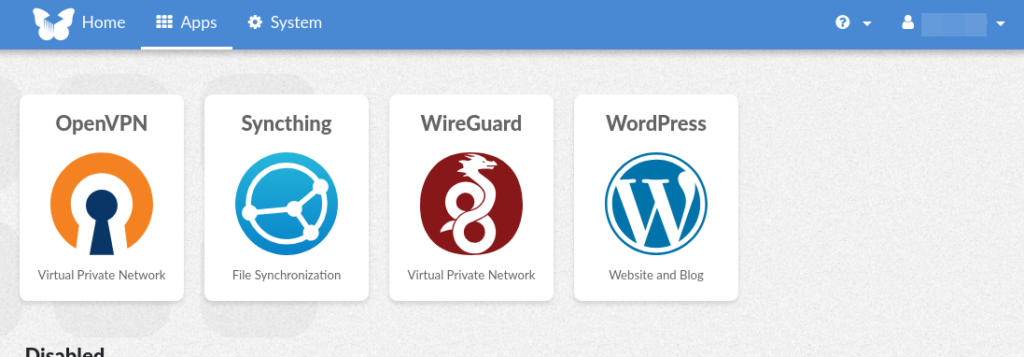
    Open a web browser and go to the local ip address of your server. Finish the installation. Enter the secret password provided during the installation, log in and start installing apps. Recommended to start with wordpress to get your domain working with your new self hosted home page.


    Ensure the secondary ssd (if you have one installed) is configured to be auto mounted with the same drive id if your server reboots. Log in to plinth and go to cockpit –> drives. This is where the backups are going to be stored. Change the options to enable auto mounting and changing the name of the permanent mount to something easier like /media/root/backup.

    Log in to plinth

    Obtain an ssl certificates for your domain (if you bought one) or get a free domain at ddns.freedombox.org

    Log in to your DNS service provider and map your domain name to the public ip of your edge router. Use ‘curl ifconfig.me’ for Linux and Windows or ‘Invoke-RestMethod ifconfig.me’ for windows to know your public ip. Freedombox also provides a free domain of your choice like yourdomain.fbx.one or domain.freedombox.rocks.

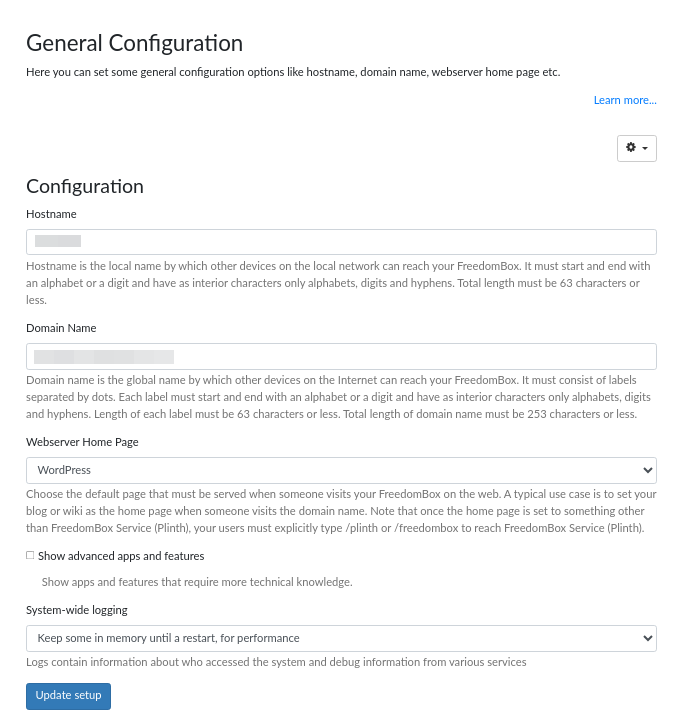
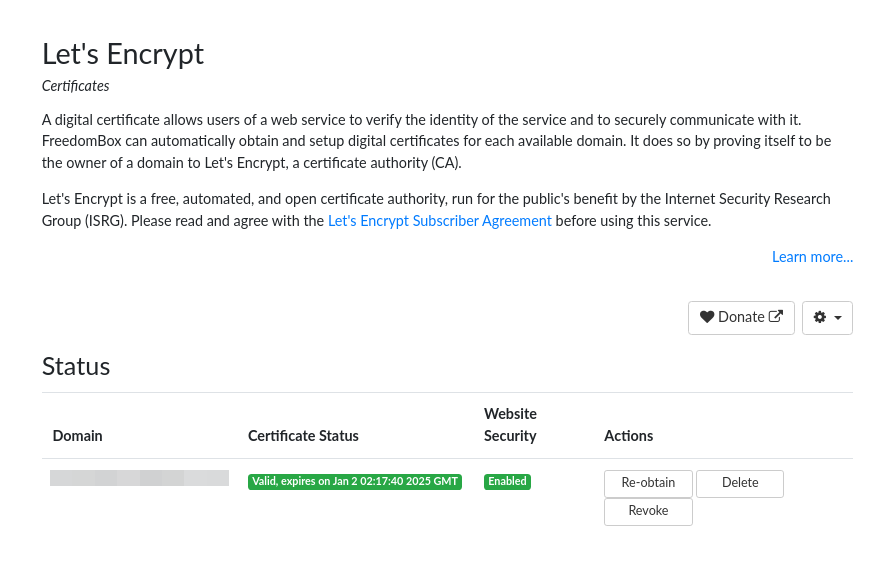
    Go to system –> Configure. Remove you first domain and type the other one you have. Update the configuration. You should loose connection to the freedombox site momentarily . Log back in with your private ip address and go to Configure –> Let’s Encrypt and click to obtain the certificate for your second domain. If you have your dns records setup correctly, both domain names should reach your freedombox.

    Go to system –> Let’s Encrypt and click “obtain” to get your certificate. Now you should go to your_domain instead of the ip address. If you have more subdomains now its the time to get those certificates as well.

    If you want to get your free domain:
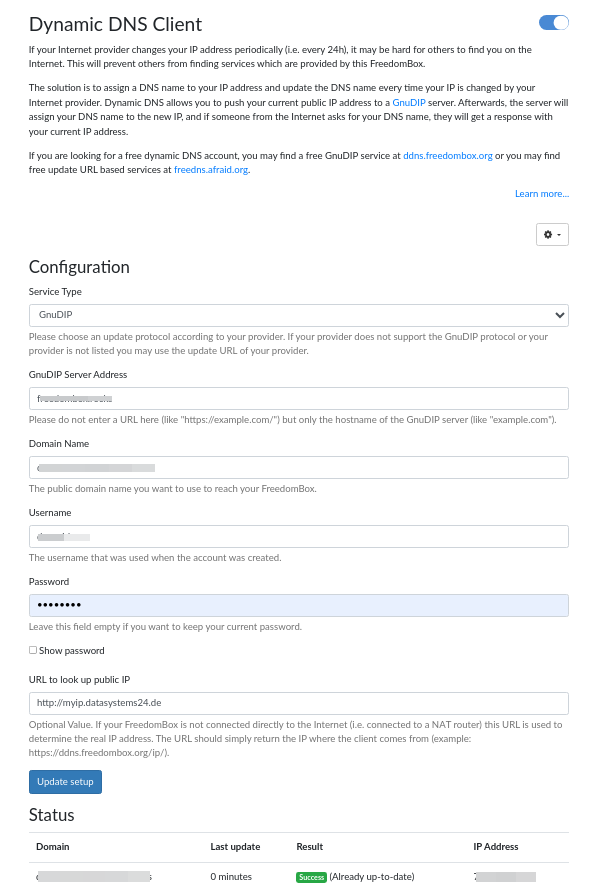
    Go to system –> Dynamic DNS Client and complete the information required but first visit ddns.freedombox.org and create an account. The information to access that account will be necessary to configure your ddns settings.

    Install Packages

    Other necessary packages might be needed depending on the services your server will provide.

    1. mariadb-server – Necessary to install other packages like wordpress. The installation will also configure phpmyadmin to manage the databases in the web browser.
    2. php8.2 – Check for more updated available versions.
    sudo apt install mariadb-server php8.2 php8.2-imagick php-imagick php8.2-intl

    Install Freedombox from a predefined image

    Go to https://freedombox.org/download/ and select the qemu image to install it in a Proxmox virtual machine. In this example we’ll choose the quemu/kvmamd64. Copy the download link address to use it later.

    Import qcow2 disk to VM

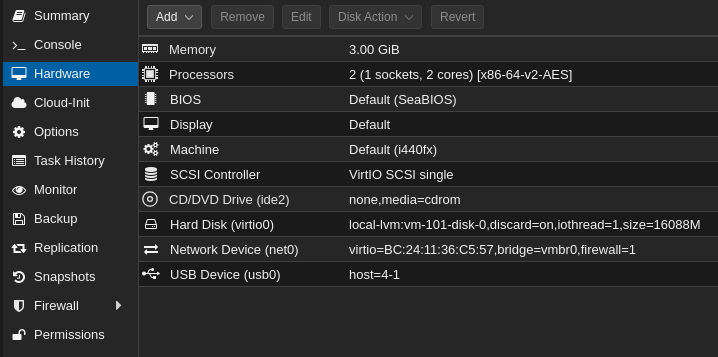
    Overview: Create a vm with parameters you want. The disk will be detached and deleted later so you have attach the qcow2 disk to it. Download the qcow2 image to your proxmox then move the virtual disk to the location where the virtual disks are stored for your VMs. You have to assign the id number of the vm of interest to the disk when doing the import. Proxmox won’t be able to download the image using its own agent to pull the image to the default destination folder because its compressed. Instead, open a shell in proxmox and go to the following location and download it using wget and decompress using [xz -d image_file.xz].

    Now you are able to import the image to your VM (make sure your vm does not have a any disks to avoid any confusion)

    qm importdisk [vm id number] freedombox-bookworm_all-amd64.qcow2 local-lvm

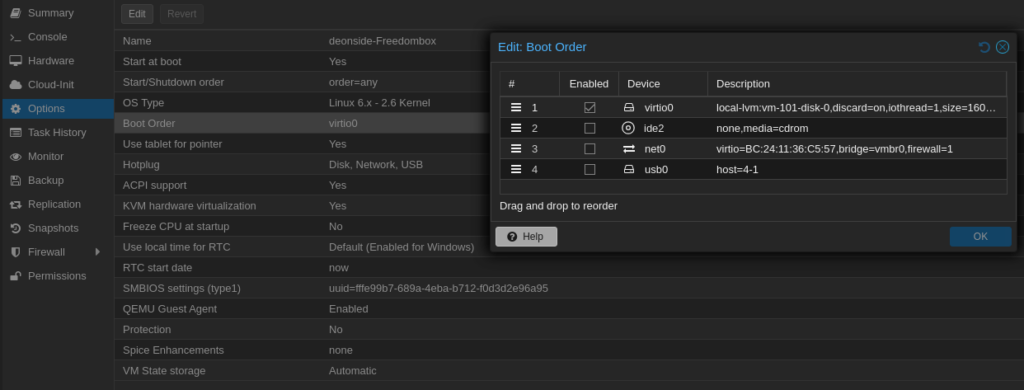
    Back in Proxmox web UI, select the VM you just created and attach the disk to the VM in the hardware section and continue in options and make it bootable. After that you can turn on the VM to access its web interface to complete the setup process. Once finished its ready to use and install apps.

    Done.

    Sources:
    https://wiki.debian.org/FreedomBox/Manual

  • Wake On Lan

    List the interfaces on your system for proper identification. The ip command will inform the names and states of them.

    ip a

    Execute ethtool with the name of the interface that must be configured to wake on lan.

    sudo ethtool [interface] 

    To enable WOL on an interface (non-persistent) type:

    sudo ethtool -s [interface] wol g

    To make a persistent change in the interface edit the /etc/network/interfaces.d/eth0 (or modify the global interface config file /etc/network/interfaces):

    auto eth0
    iface eth0 inet dhcp
         ethernet-wol g

    OR

    auto eth0
    iface eth0 inet dhcp
         post-up ethtool -s [interface] wol g

    Another way is to edit the main configuration file and add the following instruction at the end of the file:

    post-up /usr/sbin/ethtool -s [interface] wol g

    The post-up command will trigger the execution of the ethtool command on the selected interface after the interface has been initialized.

    etherwake, wakeonlan, gwakeonlan

    Wake-on: g means it is enabled.

  • Wireguard

    Using WireGuard on Debian involves several steps, including installing the WireGuard package, configuring the interface, and setting up the necessary keys. Here’s a basic guide to help you set up WireGuard on Debian using the command line:

    Install WireGuard:

    Update the package list and install wireguard:

    sudo apt updatesudo apt install wireguard

    Generate WireGuard Keys:

    Generate a private and public key pair for the server:

    wg genkey | sudo tee /etc/wireguard/privatekey-server | wg pubkey | sudo tee /etc/wireguard/publickey-server

    Generate a private and public key pair for the client:

    wg genkey | sudo tee /etc/wireguard/privatekey-client | wg pubkey | sudo tee /etc/wireguard/publickey-client

    Confirm that your keys are only available for the root user by checking the file permissions (chmod 600).

    Configure WireGuard Server:

    Create a configuration file for the WireGuard interface (e.g., /etc/wireguard/wg0.conf) and edit it with your preferred text editor:

    sudo nano /etc/wireguard/wg0-server.conf

    Add the following configuration, replacing placeholders with your actual IP addresses, private keys, and port numbers:

    [Interface]
    Address = 10.0.0.1/24 # Server IP address
    PrivateKey = SERVER_PRIVATE_KEY
    ListenPort = 51820 
    
    [Peer]PublicKey = CLIENT_A_PUBLIC_KEY 
    AllowedIPs = 10.0.0.2/32 # Client A IP address 
    PersistentKeepalive = 25
    [Peer]PublicKey = CLIENT_B_PUBLIC_KEY 
    AllowedIPs = 10.0.0.3/32 # Client B IP address 
    PersistentKeepalive = 25

    Replace SERVER_PRIVATE_KEY and CLIENT_PUBLIC_KEY with the corresponding keys generated earlier.

    Start the WireGuard Server Interface:

    Start the WireGuard interface:

    sudo wg-quick up wg0-server

    Enable the interface to start on boot:

    sudo systemctl enable wg-quick@wg0-server

    Client Configuration:

    Create a configuration file for the client (e.g., /etc/wireguard/wg0-client.conf):

    [Interface] Address = 10.0.0.2/32 # Client IP address (As assigned by the server) 
    PrivateKey = CLIENT_PRIVATE_KEY 
    
    [Peer] 
    PublicKey = SERVER_PUBLIC_KEY 
    Endpoint = SERVER_PUBLIC_IP:51820 # A domain name can be setup here as well
    AllowedIPs = 10.0.0.0/24 # Allow traffic for the assigned subnet 

    Replace CLIENT_PRIVATE_KEY, SERVER_PUBLIC_KEY, and SERVER_PUBLIC_IP with the corresponding keys and server’s public IP or domain name.

    Import the client configuration into the WireGuard client.

    Start the WireGuard Client Interface:

    Start the WireGuard interface:

    sudo wg-quick up wg0-client

    Enable the interface to start on boot:

    sudo systemctl enable wg-quick@wg0-server

    Notes:

    • Adjust firewall settings to allow traffic on the WireGuard port (default is 51820).
    • Adjust routing and forwarding if you want the server to act as a gateway.
    • Always consider security best practices, especially when handling private keys.

    This is a basic setup, and you may need to customize it based on your specific requirements and network topology. Always refer to the official WireGuard documentation for comprehensive details and updates.

  • sshuttle – Transparent proxy server for VPN over SSH

    To create a hassle-free vpn connection to a remote server you need to expose port 22 in the target device. In these examples It is assumed that the remote server is either your edge device, directly connected to an edge device (like a main router) and in a DMZ or or receiving forwarded ssh traffic from your edge device.

    First, start a ssh tunnel session with the edge machine:

    sshuttle -r [user@ipaddress(edge-device)] [192.168.5.0/24 (internal server's subnet)) --dns

    For ssh port other than the default 22 type:

    sshuttle -r [user@ipaddress(edge-device):port] [192.168.5.0/24 (internal server's subnet)) --dns

    You will be asked for your local user’s password and then the password of the user of the edge device to create the vpn connection. Once that’s done, the message “Connected to server” should be shown. From here on, you can open a web browser and type the local ip address of an internal device that belongs to the subnet you specified in the previous command. For example a Proxmox administration webUI behind the router can be accessible without having to configure port forward in the router (edge device). You can log in securely without having to expose this internal server to the internet. The —dns flag is to avoid leaking your dns requests to your ISP and instead forcing it to go through the created tunnel.

    The --dns option in sshuttle is used to capture and forward DNS traffic through the SSH tunnel. When you include the --dns option in your sshuttle command, it means that DNS queries originating from your local machine will also be routed through the established SSH tunnel.

    Here is another variant which allows you to specify a desired network interface.

    sshuttle -r user@ssh_server_ip_or_hostname 192.168.5.0/24 -i enp9s0 --dns
    • -r user@ssh_server_ip_or_hostname: Specifies the remote SSH server.
    • 192.168.5.0/24: Specifies the target subnet you want to route through the SSH tunnel.
    • -i enp9s0: Specifies the network interface you want to capture traffic from.
    • --dns: Specifies that DNS traffic should also be routed through the tunnel.

    Including the --dns option is particularly useful if you want to ensure that DNS queries are encrypted and go through the same secure connection as your other network traffic. This can be relevant for privacy and security considerations.

    Keep in mind that when using --dns, it may affect your ability to resolve DNS queries locally if the DNS server on the remote network is not reachable or not configured correctly. Ensure that the DNS server specified in the remote network is accessible and properly configured.

  • Haproxy.cfg configuration for acme challenge – openwrt

    Updated configuration file for haproxy in openwrt. The acme-challenge was improved by having dedicated acls for each webserver containing a list of their own domains to redirect certbot traffic to another dedicated backend where those domains get their ssl certificates. Normal https traffic is redirected to individual backends.

    global
            daemon
            nosplice
    
    defaults
            log global
            mode http
            option httplog
            log 127.0.0.1:514 local0
            log /var/log/haproxy.log local0
            timeout client 30s
            timeout connect 30s
            timeout server 30s
    
    frontend stats
            bind *:9000  # You can choose any port you prefer
            mode http
            stats enable
            stats uri /haproxy  # You can customize the URI path
            stats realm HAProxy\ Statistics
            stats auth username:password  # Choose a secure username and password
    
    frontend http_in
            mode http
            option httplog
            bind *:80
    
            # Rate limiting
            stick-table type ip size 1m expire 10m store gpc0
            http-request track-sc0 src
            http-request deny if { src_conn_cur gt 100 }  # Limit to 100 requests per IP
    
            # Allow ACME challenge requests to bypass redirect
            acl acme_challenge path_beg /.well-known/acme-challenge/
            acl webserver_A_hosts hdr(host) -i site.one site.two
            acl webserver_B_hosts hdr(host) -i site.three site.four
    
            http-request redirect scheme https unless acme_challenge
            use_backend acme_backend_A if acme_challenge webservers_A_hosts
            use_backend acme_backend_B if acme_challenge webservers_B_hosts
    
            option forwardfor
            # Enhanced security headers
            http-response add-header Strict-Transport-Security max-age=31536000;\ includeSubDomains;\ preload
            http-response add-header Content-Security-Policy default-src\ 'self'
            http-response add-header X-Content-Type-Options nosniff
            http-response add-header X-Frame-Options DENY
            http-response add-header X-XSS-Protection "1; mode=block"
    
    frontend https_in
            mode tcp
            option tcplog
            bind *:443
            acl tls req.ssl_hello_type 1
            tcp-request inspect-delay 5s
            tcp-request content accept if { req_ssl_hello_type 1 }
    
            # Track session data for rate limiting
            stick-table type ip size 100k expire 30m
            tcp-request content track-sc0 src
            # Use backend based on SNI
            use_backend %[req_ssl_sni,lower,word(1,:)]_tls
    
    # Backend for ACME challenges
    backend acme_backend_A
            mode http
            option httpchk
            default-server inter 3s fall 3 rise 2
            server webserver_A 192.168.1.10:80 check
    
    backend acme_backend_B
            mode http
            option httpchk
            default-server inter 3s fall 3 rise 2
            server webserver_B 192.168.3.10:80 check
    
    # Normal HTTPS traffic to backends
    
    backend site.one_tls
            mode tcp
            option ssl-hello-chk
            server site.one 192.168.1.154:443 check
    
    backend site.two_tls
            mode tcp
            option ssl-hello-chk
            server site.two 192.168.1.55:443 check
    
    backend site.three_tls
            mode tcp
            option ssl-hello-chk
            server site.three 192.168.3.77:443 check

    Explanation of Configuration:

    • Global Section: Configures global parameters for HAProxy. daemon allows HAProxy to run in the background, while nosplice prevents it from splicing connections, which can help with HTTP processing.
    • Defaults Section: Sets default logging options, timeout settings for client connections, server responses, and logs to both a remote syslog server and a local log file.
    • Frontend stats: Provides a web interface for HAProxy statistics, requiring a username and password for access. This helps administrators monitor traffic and performance.
    • Frontend http_in: Handles incoming HTTP requests, implements rate limiting to prevent abuse, and manages redirects to HTTPS while allowing certain paths (like ACME challenges) to bypass this redirection.
    • Frontend https_in: Manages incoming HTTPS traffic in TCP mode, utilizing SSL/TLS features. It inspects SSL handshakes to route requests based on the SNI field, allowing flexibility for multiple domains.
    • Backends: Each backend corresponds to a specific service or site. Health checks are configured to ensure that requests are only routed to healthy servers, and different backends are used based on the requested hostname or path.
    • Security Headers: Adding security headers helps to protect against various web vulnerabilities, such as clickjacking and XSS, enhancing the security of the web applications served.
    • Forwarding Client IPs: The option forwardfor directive, when uncommented, allows HAProxy to append the original client’s IP address to the X-Forwarded-For header. This preserves client visibility for backend servers, enhancing logging, analytics, and functionalities that rely on the original client IP. Consider enabling this if your backend services require access to client IP information.
  • TOR Relay

    Recently I installed debian on a raspberrypi using a very minimalist version to maximize the usability of the raspberry pi 3B+ as it\’s limited in resources with only 1 Gb of RAM.
    as a good test for this board and also give a hand to the tor project.

    Install packges

    sudo apt install wget gpg apt-transport-https apt-config-auto-update unattended-upgrades apt-listchanges

    Configure unattended upgrades

    Edit file /etc/apt/apt.conf.d/50unattended-upgrades. Comment with // every line starting like this from:
    //Unattended-Upgrade::Origins-Pattern {
    to its end curly bracket
    //}
    Then add these lines following the commented section:

    Unattended-Upgrade::Allowed-Origins {\n \"${distro_id}:${distro_codename}-security\";\n \"TorProject:${distro_codename}\";\n };\n Unattended-Upgrade::Package-Blacklist {\n };

    Edit file /etc/apt/apt.conf.d/20auto-upgrades and add:

    APT::Periodic::Update-Package-Lists \"1\";
    APT::Periodic::Unattended-Upgrade \"1\";
    APT::Periodic::Autocleaninterval \"5\";
    APT::Periodic::verbose \"1\";

    Test the unattended upgrades:

    sudo unattended-upgrades -d

    Configure Tor repositories

    2. Create a new file in /etc/apt/sources.list.d/ named tor.list. Add the following entries:

    deb     [signed-by=/usr/share/keyrings/tor-archive-keyring.gpg] https://deb.torproject.org/torproject.org bookworm main\ndeb-src [signed-by=/usr/share/keyrings/tor-archive-keyring.gpg] https://deb.torproject.org/torproject.org bookworm main

    Then add the gpg key used to sign the packages
    Must be executed with root account as sudo might not work. Type exit once the command has finished working.

    su -
    sudo wget -qO- https://deb.torproject.org/torproject.org/A3C4F0F979CAA22CDBA8F512EE8CBC9E886DDD89.asc | gpg --dearmor | tee /usr/share/keyrings/tor-archive-keyring.gpg >/dev/null

    Install Tor

    sudo apt install tor deb.torproject.org-keyring

    Edit Tor configuration by editing the /etc/tor/torrc file and add the following lines:
    To test Tor for 1 month I\’ll assign 500 GB/month and check daily how its behaving the tor relay on my raspberry pi.

    Nickname    myNiceRelay  # Change \"myNiceRelay\" to something you like\nContactInfo your@e-mail  # Write your e-mail and be aware it will be published\nORPort      443          # You might use a different port, should you want to\nExitRelay   0\nSocksPort   0\n\n## BANDWIDTH\n## The config below has a maximum of 500GB (up/down) per month, starting on the 1st at midnight\nAccountingMax 500 GB\nAccountingStart month 1 0:00\n\n## MONITORING\nControlPort 9051\nCookieAuthentication 1\n
    sudo systemctl enable tor && sudo systemctl restart tor

    Verify it\’s running and enabled

    sudo systemctl status tor

    htop shows overall little resources consumption

    Optional

    Install nyx (sudo apt install nyx) to have a visual depiction of what\’s happening in your recently installed Tor relay.

    Sources

    https://support.torproject.org/apt/tor-deb-repo/

    https://community.torproject.org/relay/setup/guard/debian-ubuntu/updates/

    https://www.youtube.com/watch?v=tBnJRraXDc0\n